
Like a director stepping into an edit suite for the first time, you’re probably wondering which free tools won’t stamp an ugly watermark over your work. You don’t want cluttered interfaces, hidden limits, or surprise paywalls—just clean exports and solid features. From pro-level color grading to quick social clips, some editors stand out clearly. But which five actually deserve your time and projects next?
Top 5 Free Video Editors Without Watermarks
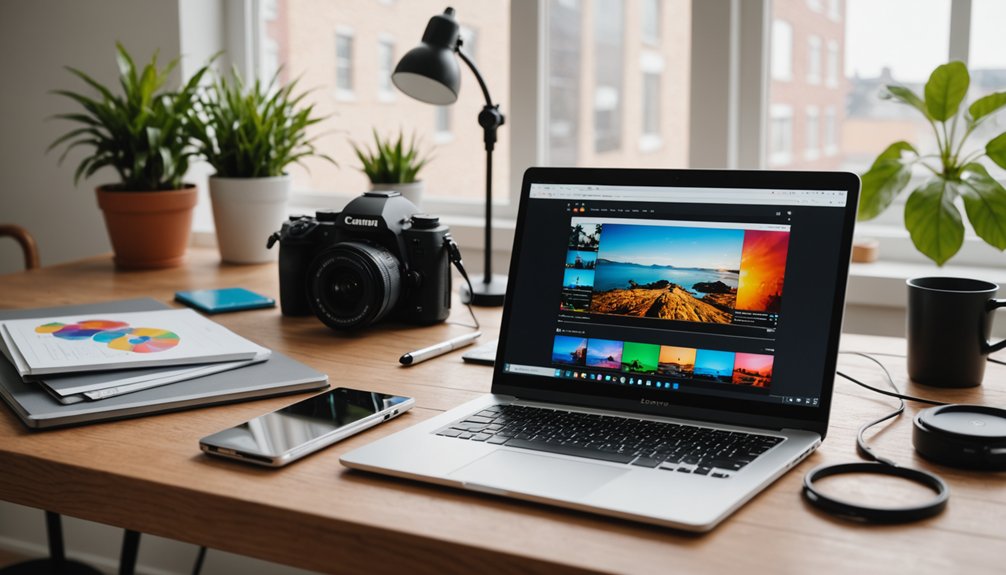
When you’re editing on a budget, finding free video software that doesn’t slap a watermark on your work can feel surprisingly difficult. But you’ve got options that won’t tattoo “FREE TRIAL” across your masterpiece.
First, DaVinci Resolve gives you pro-level tools for zero dollars and zero logos. HitFilm Free is great if you love effects but hate invoices. Shotcut keeps things simple, open-source, and watermark-free. Before you edit, you need footage — our best screen recording software guide covers the tools that produce the cleanest raw video for editing.
DaVinci Resolve, HitFilm Free, and Shotcut deliver pro, effect-heavy, and simple editing—no watermarks, no fees
For mobile editing, CapCut’s mobile app lets you slice clips on the bus like a content ninja. If you’re into cloud collaboration, Clipchamp (free tier) lets teammates meddle with your project in real time—no file chaos.
With these five, you edit, export, and post without playing “hide the watermark” ever again. Edited clips can be embedded directly into interactive presentations for remote work using the tools we reviewed.
How to Choose the Best Free No-Watermark Editor
Start by thinking less about “best overall” and more about “best for you.” The right free, no-watermark editor depends on what you’re actually doing: quick social clips, YouTube tutorials, or more cinematic projects. First, check system requirements. If your laptop wheezes when you open three browser tabs, don’t grab the most hardware-hungry editor on earth and expect magic.
Next, consider the learning curve. Are you willing to watch tutorials, or do you want to drag, drop, and be done before your coffee gets cold? Look at the timeline tools, audio controls, and export options you actually need, not the 47 effects you’ll never touch. Finally, test two or three editors. If one crashes constantly, it’s choosing for you. Custom intros and outros look great with a themed desktop aesthetic — our Rainmeter desktop customization guide can inspire your visual brand.
Best Free Editors for YouTube and Everyday Projects
Dialing in the best free editor for YouTube and everyday projects means balancing speed, control, and reliability. You don’t need a Hollywood workstation; you just need something that won’t crash when you sneeze on the timeline.
Look for editors with simple trimming, decent color grading, and drag‑and‑drop titles so you can crank out shorts, vlogs, or school projects without a three‑hour tutorial binge. Built‑in royalty free music is a lifesaver when you’re allergic to copyright strikes. Light motion tracking helps you blur faces or attach text to moving objects without summoning a VFX degree. If you’re co‑creating, basic collaboration tools—shared projects, comments, or cloud sync—keep everyone on the same page instead of arguing over “final_v27_reallyFINAL.mp4.” Script your videos and organize research with one of the AI-powered note-taking apps we recommend for students and creators.
Free Editors for Advanced, Pro-Style Video Editing
Leveling up to pro‑style editing without spending a cent means using tools that can actually hang with industry workflows. You’re not just trimming clips anymore; you’re wrestling timelines, keyframes, and export settings that look like airplane cockpits.
For serious projects, you want editors that handle advanced colorgrading so you can fix that “shot at noon, looks like midnight” problem and actually match cameras without crying. Look for full RGB scopes, LUT support, and keyframeable correction. You’ll also need solid multicam workflows, so switching between three angles of your friend’s podcast disaster doesn’t take all weekend. Features like nested timelines, robust audio mixing, and GPU acceleration let you practice real pro techniques now—so you’re ready when the paychecks show up later. Upload finished projects directly to cloud storage — Google Drive, OneDrive, or Dropbox so collaborators can access the final cut instantly.
Lightweight Free Video Editors for Social Media Clips
When you’re cranking out TikToks, Reels, or YouTube Shorts, you don’t need a giant, studio‑grade editor—you need something fast, light, and distraction‑free that doesn’t slap a watermark on your work. You want tools that open faster than your audience’s attention span closes.
Here’s what to look for in lightweight, free editors made for snack‑size content: Video editors belong on every creator’s machine; our essential software checklist for a new laptop highlights the lightest free options for day-one installs.
- Instant mobile trimming – Cut dead air, awkward pauses, and that “uhhh” before genius strikes, all with thumb‑friendly controls.
- Smart vertical templates – Auto‑formatted 9:16 layouts so you’re not manually resizing every clip like it’s 2013.
- Built‑in social exports – One tap to publish to TikTok, Reels, or Shorts—no guessing codecs.
- Snappy effects only – Quick captions, emojis, and shifts; no bloated 3D spaceship plug‑ins required.
Frequently Asked Questions
Do Free Video Editors Without Watermarks Work on Mobile Devices as Well as Desktop?
Yes, many do, but mobile compatibility and touch optimization vary wildly. You’ll find some with slick app store availability, others that crash like your dreams. Look for cross platform sync so projects survive your device-switching habits.
Can I Safely Use Free Video Editors for Commercial Projects and Client Work?
Yes, you can—but only if the editor’s license clarity is solid. Always read terms, avoid “non‑commercial only” traps, and keep receipts/screenshots. That way, your client trust stays high and nobody’s lawyer gets cardio. Motion-graphic work often involves scripting; our best IDEs for beginner developers covers editors that support Python and JavaScript for automation scripts.
How Do Free No-Watermark Editors Handle Copyright, Assets, and Stock Footage?
You juggle copyright clearance, you dodge asset traps, you chase royalty free libraries. Editors usually cover built‑in stock, but you’re still responsible for licenses, third‑party footage, and reading terms—yes, even that 40‑page snoozefest.
Are There Free Video Editors Without Watermarks That Support Collaboration or Cloud Projects?
Yes, you’ve got options: Clipchamp, Kapwing, and DaVinci Resolve + Blackmagic Cloud give you real time collaboration and cloud project sharing. You can panic‑edit, your friend can panic‑undo, all simultaneously.
Can I Edit 4K or HDR Footage in Free Video Editors Without Watermarks?
Yes, you can—and your laptop’s fan will audition as a jet engine. About 70% of editors now touch 4K. With tools like DaVinci Resolve, you’ll handle 4K workflows, basic HDR grading, proxies, and still complain lovingly.
Conclusion
You’ve now got a toolbox of free, no‑watermark editors that can turn rough footage into a polished story. Think of DaVinci Resolve, HitFilm, Shotcut, CapCut, and Clipchamp as different lenses on the same camera—each reveals a new way to shape your ideas. Pick the one that fits your style, jump in, and let your edits flow. Your next video isn’t just a project; it’s your signature on the screen.